

Do you want to know how to set up Foxtel iQ5 box? Well, it’s straightforward, so keep reading!
The Foxtel iQ5 box is an excellent way for internet or channel streaming.
The device connects to your TV and viola, a big screen, clear pictures, and vibrant colours.
However, the setup may differ between users, so if you’re confused about what you need to do, we’ve got you covered.
To set up a Foxtel iQ5 box, identify your setup type (satellite or internet-only), verify your delivered equipment and ensure you cover the requirements.
Sounds easy? It is, so let’s learn the most important first!
How to Install Foxtel iQ5 Box – Important Before You Start
The Foxtel iQ4 and iQ5 can work in two different modes based on your home service and what is available.
The set-top-box can work with an existing satellite dish in your home, which is set up and working beforehand, or connected to your internet solely for streaming Foxtel content.
If you only want to view aerial channels (Foxtel cable), you don’t need internet access or Wi-Fi, you simply need the dish installed and ready.
In contrast, the Foxtel “internet-only” mode is much easier to set up and only requires connecting the iQ5 box to the internet during the setup.
However, the complete guide below contains everything for both Foxtel iQ5 modes!
How to Set Up Foxtel iQ5 Box in Easy Steps?
1. Unbox Your Foxtel iQ5 TV Box
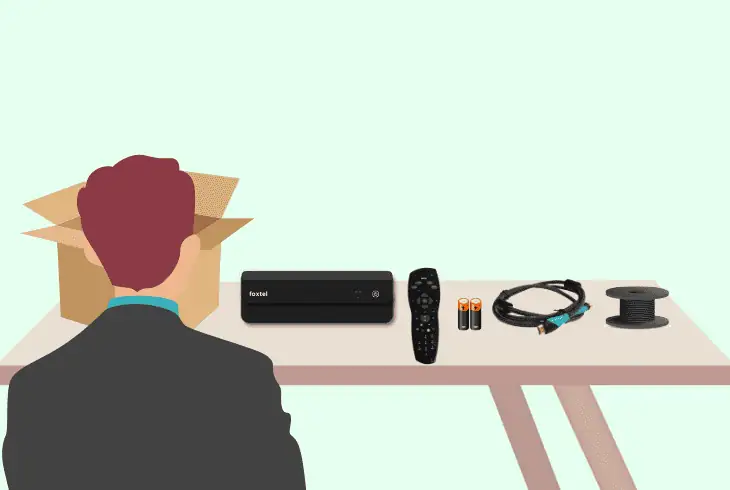
The first step is, of course, to unbox and verify your equipment.
You need to inspect the supplied pieces, so unbox your Foxtel iQ5 and check whether everything you need is delivered:
Note: If you’re just starting with Foxtel iQ5, follow the steps chronologically!
Is There a Supplied Hard Drive?
If you find a supplied hard drive, you must undertake a few more steps before you begin.
The additional hard drive will enable your iQ5 box to have more internal storage, so implementing the drive is crucial.
So, first, remove the rubber from the port to reveal the socket underneath the Foxtel iQ5 box.
Then, connect the hard drive by pushing your iQ5 box gently on the correct axis against the hard drive until you feel both units locking together.
Note: If you don’t have a supplied hard drive, jump to the next step!
2. Check Your iQ5 Requirements
When your equipment is validated, you must check whether everything on your side regarding the requirements is intact.
The thing is that the installation is different based on whether you want to use an existing satellite connection or an internet-only setup.
Regardless, we’ve got you covered.
For Internet-Only Setup:
To set up your Foxtel iQ5 for internet-only use, you’ll need the following:
- A working home broadband (internet access).
- Wireless, Wi-Fi or wired, Ethernet connection.
- A certain internet speed for smooth streaming:
- 3 Mbps for SD streaming
- 7 Mbps for HD streaming
- 25 Mbps for UHD streaming
Tip: You can test your internet connection here.
For Satellite Dish Setup:
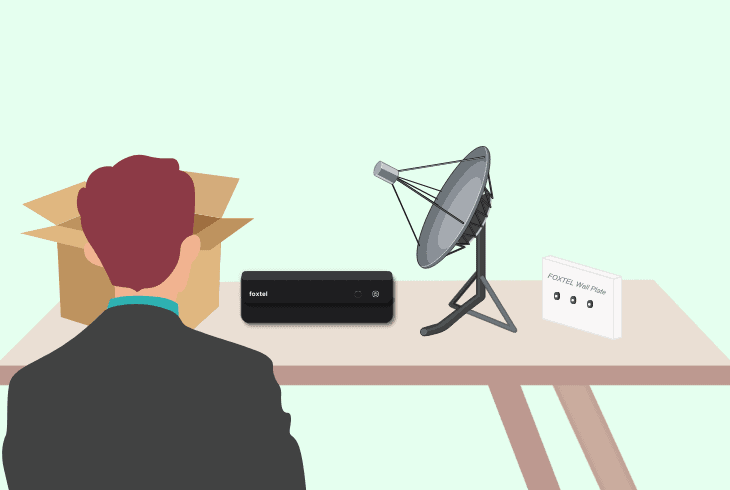
To configure your Foxtel iQ5 for satellite connection, you’ll need the following:
- The entire Foxtel iQ5 box equipment.
- An installed and working satellite dish.
- An active and working Foxtel wall plate.
If everything is there, continue reading!
3. Connect Foxtel iQ5 to Your TV
To connect Foxtel iQ5 to your TV, you’ll need the cables supplied with the box.
However, before you begin, we recommend unplugging your TV from the power to avoid issues during the setup.
Here’s how to connect Foxtel iQ5 to your TV, as per your type of connection:
iQ5 Connection for Internet Only:
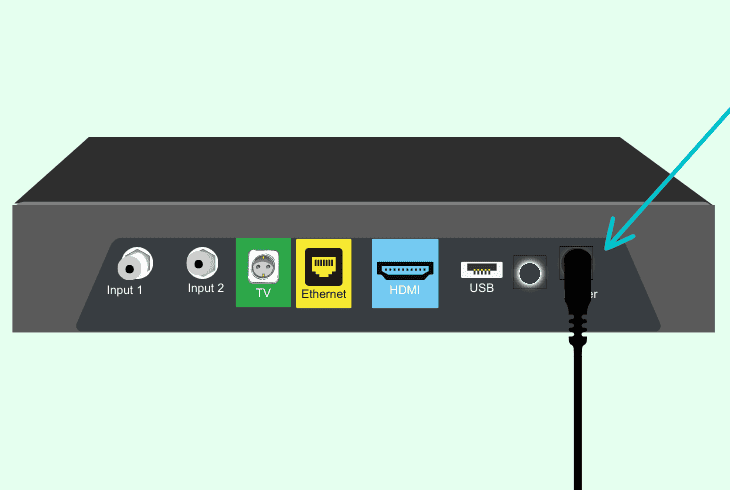
- Connect the HDMI cable to the Foxtel iQ5 box.
- Plug the other HDMI end into the selected TV.
- Connect your Foxtel iQ5 box to the wall outlet.
- Optional: For Aerial TV, use the green iQ5 port.
- Verify that all the cable connections are secure.
iQ5 Connection for Satellite Dish:
- Use the Foxtel cables supplied with your box.
- Connect your Foxtel iQ5 with your wall plate.
- Use the box’s “input 1” if you have one cable.
- Connect the other end to the TV’s “Aerial” port.
That’s it, but there’s more!
4. Turn ON Your Foxtel iQ5 and TV
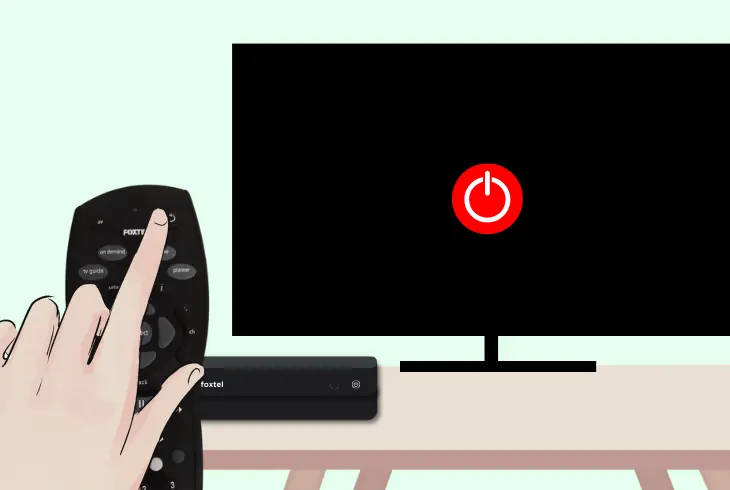
When the connections are established, reconnect your TV to the power outlet and turn on both devices.
If your iQ5 is not turning on, verify that the electrical outlet is working and that the power cable is connected securely on both sides.
If the setup is successful, you’ll be greeted by the “Guided Setup,” prompting you to continue with the steps ahead.
However, you’ll need the remote to use the internet with the iQ5 box!
Insert Batteries into the Remote
2 x AA batteries must be supplied with your Foxtel iQ5 dedicated to the remote control.
So, remove the battery cover of your Foxtel remote and insert the batteries to enable the remote.
Note: If you don’t see anything on your connected TV, inspect the HDMI connection!
5. Complete the iQ5 Guided Setup
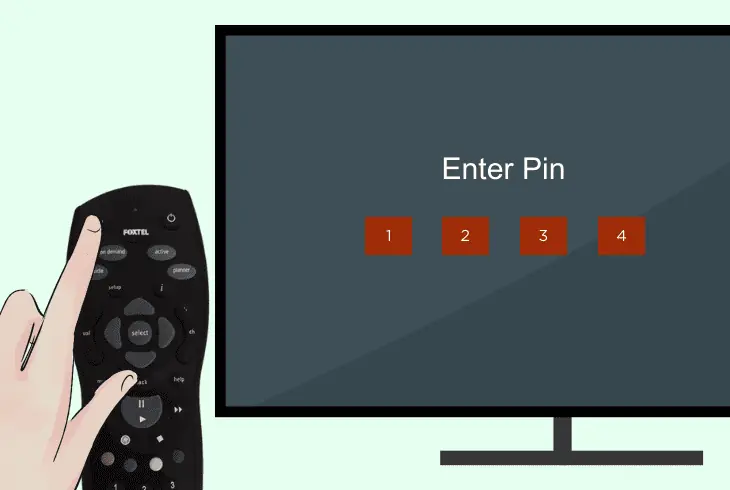
The guided setup will carry you through everything you need to know as quickly as possible, but you must know a few notable things.
- You’ll be asked to insert the default PIN, “1 2 3 4,” which can be changed later from the Settings → Parental Controls.
- Based on your setup, you’ll be prompted to select the type of Foxtel iQ5 connection, which can be satellite